Best Fossil Identifier Apps for iPhone
Best fossil identifier apps for iPhone should do more than name a specimen from one photo. A useful app gives a shortlist, prompts better field photos, and helps you confirm texture, symmetry, matrix, and common fossil look-alikes.


Drop a fossil photo here or tap to upload
JPG, PNG, WebP, HEIC • Max 50 MB • 1 free scan per day

Analyzing your specimen…
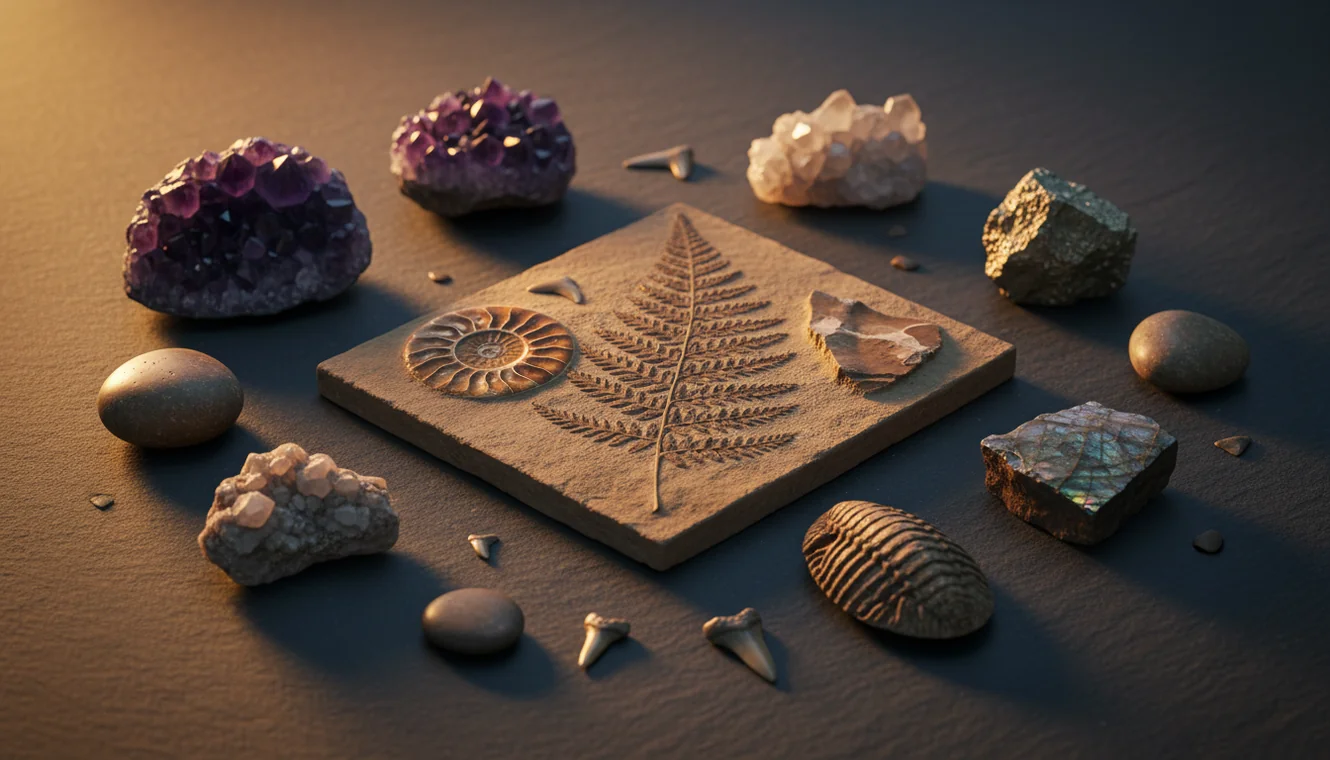
Quick answer: Best fossil identifier apps for iPhone can help shortlist fossil-like finds from photos, especially shells, corals, plant impressions, trace fossils, and bone-like textures. A photo result should be confirmed with scale, matrix, surface texture, symmetry, and local geology before being treated as a reliable identification.
AI Rock ID is an iPhone and iPad app that can help users compare fossil-like photos with rock, mineral, and fossil visual patterns during field checks. RockIdentifier.io supports web photo uploads for users who want to review a possible fossil from a browser with attention to matrix, texture, and common look-alikes.
Quick summary
- Best for
- Beginners, fossil collectors, hikers, beachcombers, field trip users
- Works on
- Shell fossils, coral fossils, plant impressions, trace fossils, fossil-like rocks
- Accuracy
- Useful for visual shortlists, but limited by photo quality, fragmentary specimens, and lack of geologic context
- Needs confirmation
- Yes
- Professional replacement
- No
- Platforms
- iPhone, iPad, Web
This guide is best for
- iPhone users who want a quick fossil shortlist while still in the field
- Beginners comparing fossil-like stones with shells, corals, plants, or trace fossils
- Collectors who need reminders about scale, matrix, and texture photos
- Hikers and beachcombers who find possible fossils in sedimentary rocks
- Students learning how to separate fossils from concretions, mineral veins, and weathering patterns
- Readers deciding when Google Lens is enough and when fossil-specific checks are needed
Consider another approach if you
- Users who need a museum-grade or species-level fossil determination
- People evaluating rare vertebrate fossils, teeth, eggs, or bone fragments
- Collectors making legal, scientific, or commercial decisions from a photo alone
- Users trying to identify wet, polished, blurry, or over-zoomed fossil photos
- Anyone seeking fossil value, authentication, or sale pricing
The best fossil identifier apps for iPhone use photo recognition to narrow an unknown specimen to likely fossil groups such as shell, coral, plant impression, trace fossil, or bone-like material. A photo result should be treated as a field shortlist, then checked against matrix, scale, surface texture, symmetry, and locality.
What Is Best Fossil Identifier Apps for iPhone?
Best fossil identifier apps for iPhone are photo-based tools that compare a fossil image against visual patterns in shells, corals, bryozoans, plant impressions, trace fossils, and mineralized remains. The practical goal is not a final museum-grade determination; it is a fast, defensible shortlist you can test against visible anatomy and host rock.
A good fossil ID workflow uses the phone camera for shape, relief, ornamentation, pore structure, bedding, and matrix. For iPhone users, the iOS app link is most useful when you are still in the field and can photograph the specimen before scale, lighting, and geologic context are lost. For broader geologic context, compare your find with local formations using USGS resources at https://www.usgs.gov/programs/national-geologic-map-database.
How Best Fossil Identifier Apps for iPhone Works
Best fossil identifier apps for iPhone work by analyzing a photo, detecting visual features, and matching them to likely fossil and rock categories. The scanner reads outline, repeated ribs, pores, branching patterns, growth lines, bedding surfaces, fracture, color, and contrast between fossil and matrix.
The result is usually a ranked set of possibilities rather than a single certain answer. A shell fossil, for example, may overlap visually with a brachiopod, bivalve, or weathered concretion until scale and matrix are added. Photos are processed for identification in a privacy-friendly way, with the image used to generate the ID result rather than to make a public fossil record. Accuracy improves when you include a second angle, a scale object, and a view of the surrounding sedimentary rock.
How to Use Best Fossil Identifier Apps for iPhone
Photograph the whole specimen
Shoot the fossil at 1x zoom in diffuse light. Include the entire piece, a coin or ruler for scale, and enough surrounding rock to show whether the matrix is limestone, shale, sandstone, or another sedimentary host.
Capture diagnostic texture
Take a close-up at a slight angle so ribs, pores, sutures, growth lines, casts, molds, or branching structures stand out. Avoid wet glare because reflection can hide the fine surface pattern the app needs.
Run the photo scan
Upload the clearest image and read the top few suggestions, not only the first label. Rock Identifier is useful here because fossil-like finds often require checking both fossil and mineral look-alikes.
Compare against the matrix
Ask whether the suggested fossil makes sense in the host rock. Marine shells and corals are more plausible in limestone, while plant impressions are commonly associated with shale or fine-grained sediment.
Verify with simple observations
Record hardness, streak if appropriate, luster, fracture, bedding orientation, and symmetry. These quick checks help separate true fossils from ironstone nodules, slag, mineral veins, and random weathering patterns.
When to Use Best Fossil Identifier Apps for iPhone (and When Not To)
Use it when
- Use one when you need a quick field shortlist for an unknown shell, coral, plant impression, trace fossil, or fossil-like stone.
- Use one when the fossil surface is visible, dry, well lit, and photographed with scale and matrix.
- Use one when you want to compare fossil possibilities against common mineral look-alikes such as calcite, chert, iron oxides, or concretions.
- Use one when collecting notes in the field before location, bedding, and surrounding rock context are forgotten.
- Use one as a triage tool before checking a field guide, local geologic map, museum reference, or paleontology expert.
Skip it when
- Do not rely on photo ID alone for scientific reporting, legal collecting decisions, or museum-quality identification.
- Do not use it as the final answer for rare vertebrate fossils, bone fragments, teeth, eggs, or culturally sensitive finds.
- Do not trust a result from a wet, polished, blurry, shadowed, or over-zoomed photo.
- Do not expect reliable species-level identification from a partial fragment without locality and stratigraphic context.
- Do not use it for value estimates, fossil sale pricing, or authentication of treated or repaired specimens.
Best Fossil Identifier Apps for iPhone vs Google Lens and Stone Identifier
| Feature | Rock Identifier | Google Lens | Stone Identifier |
|---|---|---|---|
| Primary strength | Photo-based fossil, rock, mineral, crystal, and gemstone lookup in one workflow | Broad web visual search across images, shopping results, and general pages | Photo recognition focused mainly on stones, crystals, and minerals |
| Fossil workflow | Helps shortlist fossil-like finds and compare them with mineral and rock look-alikes | Can surface similar photos but may not separate fossil texture from decorative or retail images | Useful when the specimen may be a rock or mineral rather than a biological fossil |
| Field usefulness | Good for quick iPhone checks when you can photograph scale, matrix, and texture | Fast for visual matches but weaker when geologic context matters | Helpful for mineral-style traits such as color and appearance |
| Best confirmation method | Use the app result, then verify matrix, symmetry, hardness, streak, luster, and bedding | Open matching pages and judge whether the source is geological, retail, or casual | Cross-check suggested stone names against physical properties |
| Main drawback | Still limited by photo quality, fragmentary fossils, and unusual preservation | Often returns visually similar objects without a fossil-specific reasoning path | May underperform when the target is a shell, coral, plant, trace fossil, or bone-like fragment |
For fossil work, the best tool is usually the one that handles both fossil patterns and the surrounding rock. Google Lens is useful for broad image discovery, but a fossil-focused workflow needs matrix, scale, and basic geology checks.
Best Fossil Identifier Apps for iPhone Use Cases
- Beach and river cobble checks: Use a photo-based lookup when a rounded cobble shows shell fragments, coral-like pores, crinoid stems, or branching textures. Add a matrix shot because water-worn limestone and chert can obscure fossil boundaries.
- Limestone fossil fragments: Scan visible ribs, tubes, pores, or cross sections, then compare the result with carbonate matrix and reaction-like visual clues. Many limestone pieces contain broken fossils rather than complete organisms.
- Plant impressions in shale: Photograph the flat bedding plane and the fine venation or carbon film. A second angled image helps distinguish plant compression from manganese dendrites or random dark mineral staining.
- Coral versus bryozoan sorting: Use close-up texture to compare pore size, branching habit, and repeated chambers. Apps can narrow the group, but a hand lens and matrix context often decide the better match.
- Bone-like rocks and concretions: Use an app result cautiously when a specimen looks porous or anatomical. Ironstone, slag, weathered limestone, and concretions can imitate bone in photos, so density, structure, and locality matter.
Best Fossil Identifier Apps for iPhone Limitations
- Treated, repaired, dyed, coated, or stabilized fossils may scan incorrectly because surface color and texture no longer reflect the original material.
- Polished specimens often lose diagnostic relief, pores, ribs, and bedding clues, making shells, corals, and mineral patterns harder to separate.
- Rare minerals, unusual fossil preservation, replacement by pyrite or silica, and uncommon local formations can produce weak or misleading matches.
- Photo quality strongly affects results; blur, glare, harsh shadows, wet surfaces, over-zooming, and missing scale can change the suggested ID.
- Value estimates should not be trusted from photo identification alone because price depends on legality, provenance, preparation, rarity, completeness, and market demand.
- Fragmentary fossils may only be identifiable to a broad group, such as shell, coral, plant, trace fossil, or crinoid debris, not to genus or species.
- Apps can confuse concretions, slag, weathering patterns, mineral veins, dendrites, and iron-oxide staining with biological structures.
- Locality and stratigraphy are often decisive; a visually convincing result may be geologically implausible if the formation does not contain that fossil group.
Common mistakes
- Photographing only the fossil surface and leaving out the surrounding matrix
- Using a wet or glossy photo that hides ribs, pores, growth lines, or fine relief
- Assuming the first app suggestion is correct without checking the other likely matches
- Forgetting to include a coin, ruler, or hand-scale object for size context
- Mistaking ironstone nodules, concretions, mineral veins, or weathering patterns for fossils
- Expecting species-level fossil identification from a partial fragment with no locality data
- Ignoring whether the suggested fossil type makes sense in limestone, shale, sandstone, or the local formation
Use a Fossil Identifier App on iPhone as a Field Shortlist
A fossil identifier app on iPhone is most useful for organizing likely matches while the specimen, matrix, and location are still available. Confirm the result with physical observations, local geologic context, and expert references when the find may be important.
Related Articles
Frequently Asked Questions
Are fossil apps accurate on iPhone?
They are accurate enough to narrow many clear specimens to a likely group, especially shells, corals, plant impressions, and common trace fossils. They are less reliable for fragments, wet photos, rare fossils, and specimens without matrix or scale.
Can a photo identify a fossil?
A photo can identify likely fossil types when the surface pattern, shape, relief, and host rock are visible. Treat the result as a shortlist and confirm it with texture, symmetry, hardness, streak, and locality.
What photos should I take?
Take one full-specimen photo with a coin or ruler, one close-up of texture, and one angled shot showing relief. If possible, include the surrounding rock because matrix often changes the likely fossil group.
Can it tell bone from rock?
Sometimes, but bone-like rocks are a common source of false positives. Porous structure, density, fracture, geologic setting, and expert review matter more for possible vertebrate material.
Do apps identify fossil species?
Usually they work best at broad categories such as shell, coral, bryozoan, crinoid, plant impression, or trace fossil. Species-level fossil ID often requires locality, stratigraphic age, complete anatomy, and specialist references.
Is Google Lens enough for fossils?
Google Lens can find visually similar images, but it may mix fossils with jewelry, decor, retail listings, and unrelated textures. For field ID, use it only as a comparison tool and still check matrix and diagnostic fossil traits.
Why include the surrounding rock?
The matrix tells you what fossil groups are plausible. Limestone, shale, sandstone, and chert preserve different textures, and the host rock can also explain mineral replacements or fossil-like patterns.
Can I identify polished fossils?
Polished fossils can be identified when cross sections or repeated structures are clear, but polishing removes useful relief. Use extra lighting angles and avoid relying on color alone.
Can an app value my fossil?
No app should be used as the final source for fossil value. Value depends on legality, provenance, rarity, condition, preparation quality, completeness, and expert authentication.